
玻尔用户使用指南:登录、钱包余额与充值
本指南面向使用 Uni-Parser 的玻尔(Bohrium)用户,介绍如何通过玻尔账号完成登录与授权、在 Uni-Parser 中查看试用额度和钱包余额,以及在需要时为玻尔钱包充值。已有 API Key 的用户也可以直接输入 Key 使用 Uni-Parser。
1. 在 Uni-Parser 选择“玻尔登录”
进入 Uni-Parser,在认证区域点击玻尔登录。
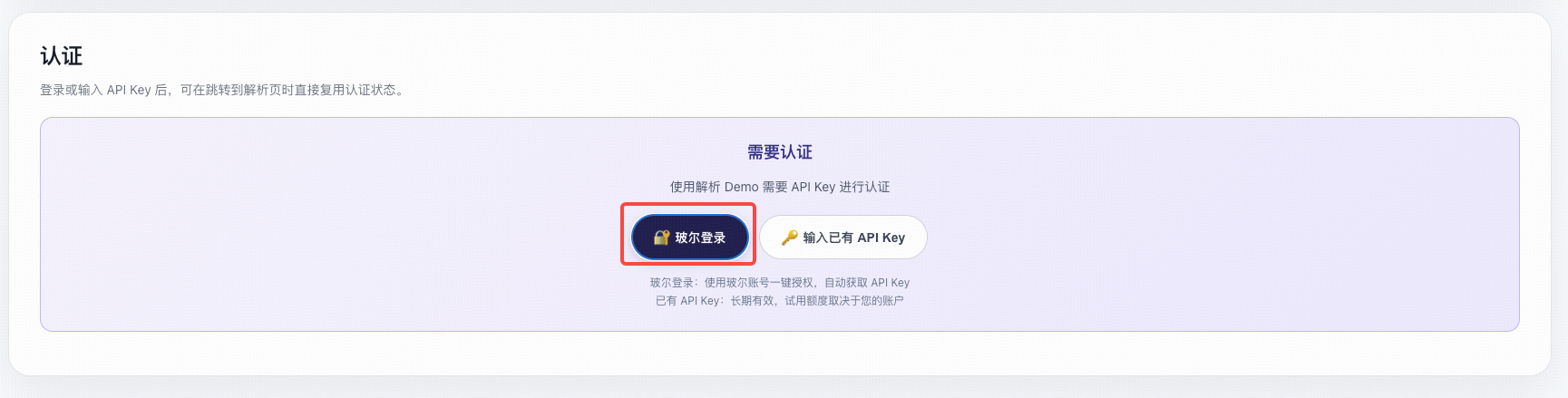
如已有 API Key,可以选择“输入已有 API Key”。登录或输入 Key 后,可在解析页复用认证状态。
2. 完成登录与授权
在弹出的玻尔登录页面选择登录方式。以手机号登录为例,输入手机号、获取并填写验证码,阅读并同意相关协议后登录。其他登录方式也可能需要手机号验证。
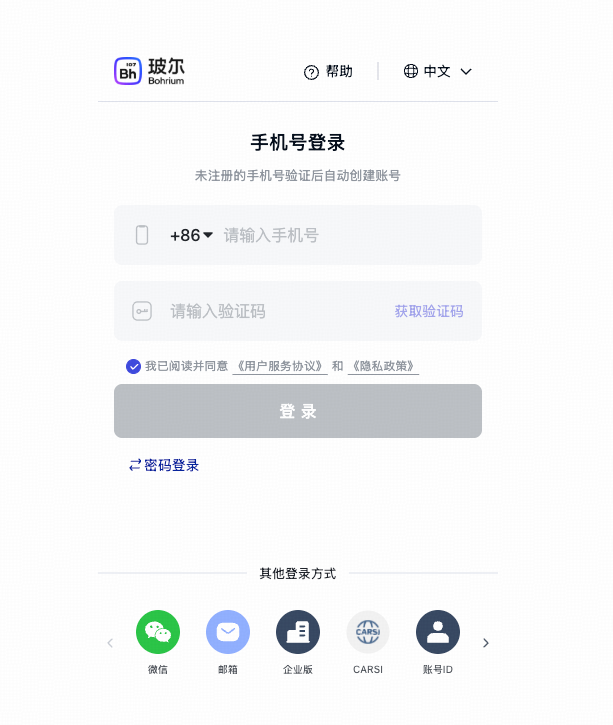
登录后,按授权页面提示点击授权,允许 Uni-Parser 使用玻尔登录。完成授权后返回 Uni-Parser。
3. 查看试用额度与钱包余额
登录成功后,在 Uni-Parser 的认证区域查看试用额度与 Bohrium 钱包可用余额。新用户注册会获得少量试用额度,具体以账户显示为准。
试用额度与钱包余额分别显示。文档解析每页消耗 0.05 试用额度;需要使用钱包时,在已开通钱包支付的环境中使用相应支付方式。
4. 在玻尔平台进入“科研资产”
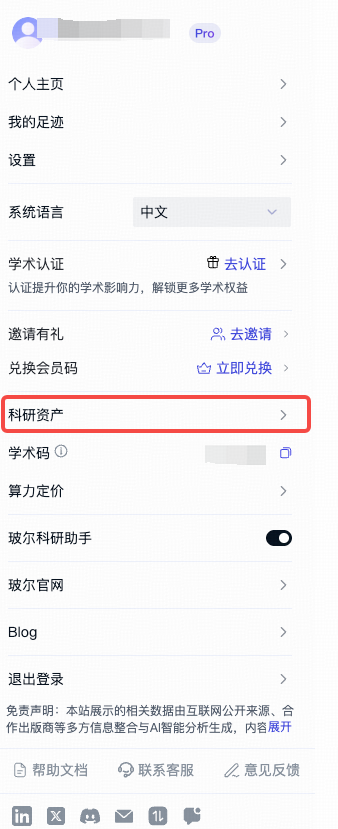
需要为 Uni-Parser 解析补充钱包余额时,打开 玻尔平台,使用对应的玻尔账号登录,点击左下角用户头像,在菜单中选择科研资产。
5. 选择充值金额
在“科研资产”页面切换到充值,选择充值金额,并按页面提示继续完成支付。
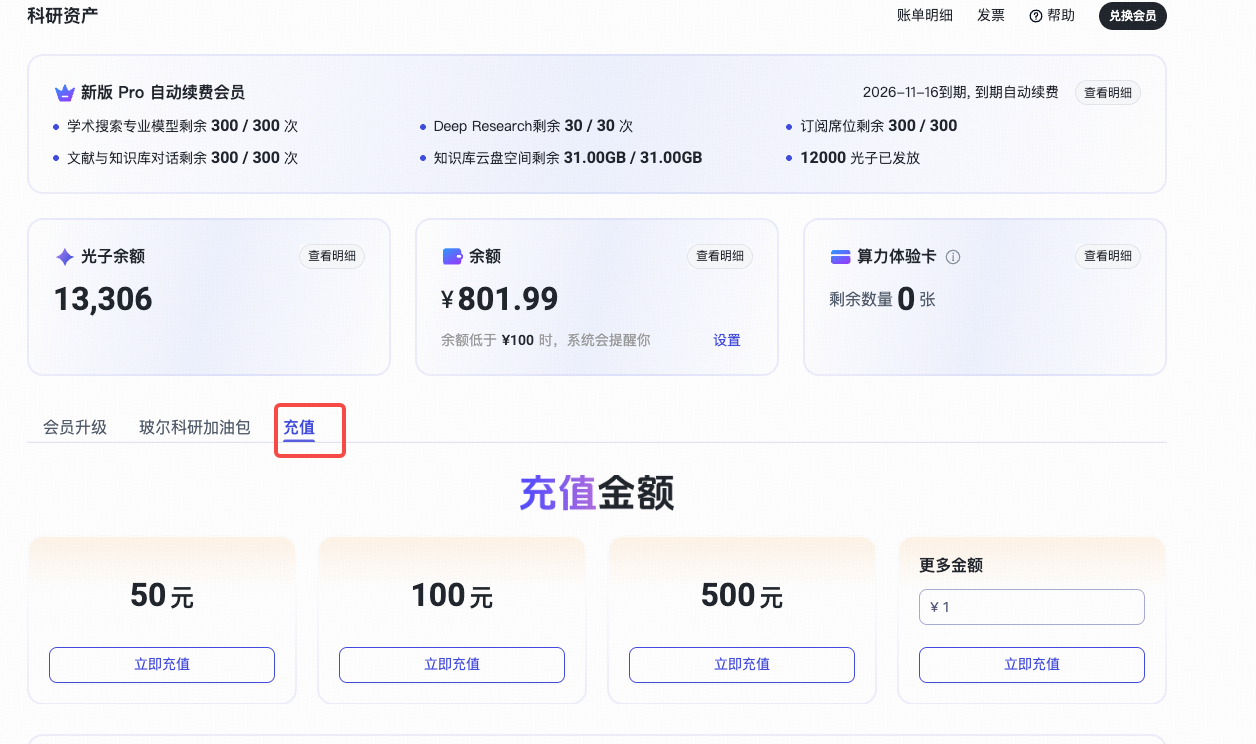
图中金额、余额与账户状态仅为操作示例,请以自己的账户和当前页面显示为准。
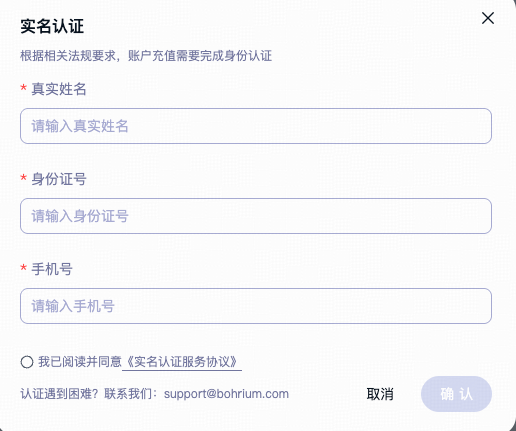
6. 首次充值完成实名认证
首次充值时,玻尔平台会要求完成实名认证。请在玻尔平台的认证页面填写真实姓名、身份证号与手机号,并按页面提示提交。
7. 返回 Uni-Parser 确认余额
充值成功后,返回 Uni-Parser 查看 Bohrium 钱包可用余额。余额显示可能稍有延迟,刷新页面后再次查看。
若余额仍未更新,先确认充值使用的玻尔账号与 Uni-Parser 当前登录账号一致,并在玻尔平台查看充值是否成功。
常见问题
有 API Key,还需要重新登录吗?
可以直接选择“输入已有 API Key”。如需查看或充值玻尔钱包,请使用对应的玻尔账号。
充值后余额没有变化怎么办?
先刷新 Uni-Parser 页面,再确认当前登录账号及玻尔平台的充值结果。充值后的金额显示在 Bohrium 钱包余额中,与试用额度分别显示。
从哪里开始解析?
返回 Uni-Parser 首页,完成认证后选择解析模式,上传 PDF 或图片开始使用。单元素解析需在上传图片后确认类型与质量,再点击“开始解析”。开发者可查阅 API 文档。
Uni-Parser Guide for Bohrium Users: Sign-In, Wallet Balance, and Top-Up
This guide is for Bohrium users using Uni-Parser. It covers signing in and authorizing access with a Bohrium account, checking trial credits and wallet balances in Uni-Parser, and topping up the Bohrium wallet when needed. Users with an existing API Key can also enter it directly to use Uni-Parser.
1. Select Bohrium Sign-In in Uni-Parser
Visit Uni-Parser and select Bohrium sign-in in the authentication area.
If you already have an API Key, select the option to enter an existing Key. Your authentication state can be reused on the parsing page after signing in or entering the Key.
2. Sign In and Authorize Access
Choose a sign-in method in the Bohrium popup. For phone sign-in, enter your phone number, request and enter a verification code, review and accept the relevant agreements, and sign in. Other sign-in methods may also require phone verification.
After signing in, select Authorize on the authorization page to allow Uni-Parser to use your Bohrium login, then return to Uni-Parser.
3. Check Trial Credits and Wallet Balance
After signing in, check trial credits and the available Bohrium wallet balance in the Uni-Parser authentication area. New users receive a small amount of trial credits; refer to your account for the actual amount.
Trial credits and wallet balances are displayed separately. Document parsing consumes 0.05 trial credit per page. Wallet payment is available in environments where it has been enabled.
4. Open Research Assets in Bohrium
To add wallet funds for parsing with Uni-Parser, visit Bohrium and sign in with the corresponding account. Open the profile menu at the bottom left and select Research Assets (科研资产).
5. Choose a Top-Up Amount
On the Research Assets page, select Top Up (充值), choose an amount, and follow the payment instructions.
Amounts, balances, and account status in the screenshot are examples. Refer to your own account and the current page for actual values.
6. Complete Identity Verification for the First Top-Up
Bohrium requires identity verification for first-time top-ups. Enter your real name, identification number, and phone number on Bohrium's verification page, then follow its submission instructions.
7. Return to Uni-Parser and Confirm the Balance
After a successful top-up, return to Uni-Parser and check the available Bohrium wallet balance. The displayed balance may be delayed; refresh the page and check again.
If the balance is still unchanged, confirm that the account used for the top-up matches the account signed in to Uni-Parser, and check whether the top-up succeeded on Bohrium.
Frequently Asked Questions
Do I need to sign in again if I have an API Key?
You can enter an existing API Key directly. To view or top up a Bohrium wallet, use the corresponding Bohrium account.
Why has my balance not changed after a top-up?
Refresh Uni-Parser, then check the signed-in account and the top-up result on Bohrium. The top-up appears in your Bohrium wallet balance, which is displayed separately from trial credits.
Where do I start parsing?
Return to the Uni-Parser home page, authenticate, choose a parsing mode, and upload a PDF or image. For individual-element parsing, confirm the image type and quality after uploading, then click “Start parsing”. Developers can refer to the API documentation.